Bundled AppX dependencies
The ZIP includes Microsoft VCLibs and Microsoft UI Xaml AppX packages used by the App Installer repair path.
Windows Setup & Maintenance GUI
Melder is a free Windows setup utility that brings application installation, WinGet search, driver and diagnostic tools, security software, Windows configuration changes, shortcuts, cleanup, updates, restore-point tasks, and selected uninstall actions into one checkbox-driven interface.
Interface
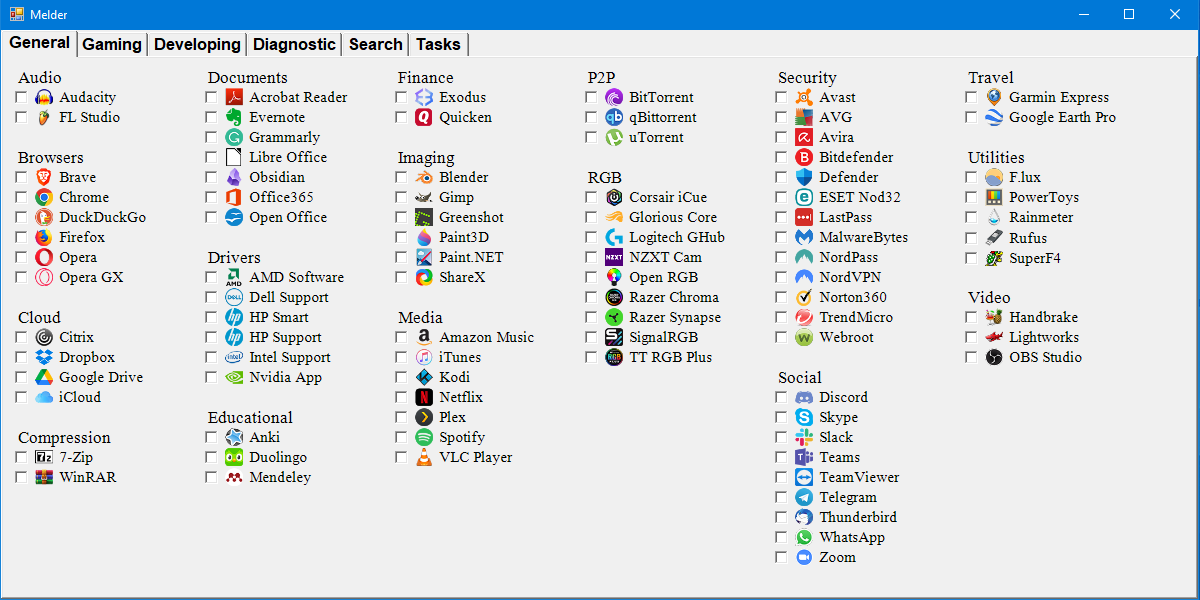
Melder organizes its tools by purpose instead of presenting one enormous installer list. Check the items you want, then use the Tasks tab's RUN button to process selected actions.
WinGet & App Installer
Melder depends heavily on Windows Package Manager. If App Installer is missing or too old, the script can repair the required components before the GUI is used.
The ZIP includes Microsoft VCLibs and Microsoft UI Xaml AppX packages used by the App Installer repair path.
Melder checks for a compatible Windows App Runtime 1.8 framework and downloads Microsoft's runtime installer when the required framework is missing.
If needed, Melder downloads Microsoft's Desktop App Installer package from the official winget-cli GitHub release and verifies the installed package afterward.
The script includes source update/repair logic and installer retry handling for package-manager failures and hash-mismatch scenarios.
Application Installation
Many selections are installed through WinGet, while other software uses vendor downloads, portable archives, Microsoft Store packages, or an official webpage when a fully automated installation is not appropriate.
Melder maps a large set of checkboxes to package IDs and installs the selected packages through Windows Package Manager.
Some tools use vendor URLs, GitHub release assets, ZIP extraction, custom install folders, or special verification logic when no standard WinGet flow fits.
Current examples include NVIDIA App, AMD Software, and some security/vendor products. Melder opens the official website, explains what to do, and waits for Enter before continuing.
Manual prompts support qq so the user can stop the RUN sequence instead of being forced to continue.
Gaming
When multiple internal drives are available, Melder can ask which drive should be used for supported game, launcher, mod, and emulator installations. If C: is the only eligible internal drive, it can use it automatically where the package allows.
Search
The Search tab runs WinGet asynchronously so the GUI does not have to block while results are collected. It supports searching the catalog, searching installed packages, listing all installed packages, installing the selected result, and uninstalling a selected installed package.
Enter a term to search available WinGet and Store-backed results using the currently configured package sources.
Search the packages already installed on the PC or list the entire WinGet-visible installed package inventory.
Tasks
The Tasks tab groups Windows changes into Disable, Enable, Shortcuts, System Prep, and Uninstall sections.
Selections include Animations, Encryption, Highlights, Notifications, Sleep, Snap Windows, Suggestions, Task View, Telemetry, Transparency, Widgets, and Xbox Services.
Selections include Accent Color, Classic Context Menu, Clipboard History, Dark Mode, File Extensions, Hidden Files, Left Taskbar alignment, Night Light, Show Seconds, and automatic time-zone behavior.
Melder can create desktop web shortcuts for sites such as Amazon, Best Buy, Gmail, Google, Reddit, Yahoo, YouTube, X, and others, plus selected software/project shortcuts.
Current selections include App Updates, Auto Restart, Auto Time Zone, Cleanup, Restore Point, Windows Updates, and Select All.
Bloatware
The current Bloatware task uses a curated list of optional Microsoft consumer/inbox apps instead of removing Windows apps indiscriminately. Core utilities and dependencies are intentionally preserved.
Examples include Clipchamp, Copilot, Feedback Hub, Maps, Phone Link, consumer Teams, Outlook for Windows, Solitaire, selected legacy Bing packages, and Xbox front-end/overlay packages.
Third-party promotional packages such as Amazon, Netflix, Spotify, TikTok, Candy Crush, Instagram, WinZip, and similar apps are only added to the target set when Windows/OEM provisioned them.
Microsoft Store, App Installer, Calculator, Camera, Snipping Tool, Notepad, Terminal, Photos, Sticky Notes, Quick Assist, Web Experience, Cross Device, Gaming Services, and other core dependencies are intentionally retained.
Matching removable Appx packages can be removed for all users and matching provisioned packages can be removed from the online Windows image for future profiles.
Uninstall Tasks
Melder downloads MCPR from McAfee, verifies its Authenticode signature, launches the interactive removal tool, and tells the user to close MCPR rather than click its Restart button when finished.
Melder first tries WinGet uninstall for Microsoft OneDrive and can fall back to the Windows OneDriveSetup uninstall path when necessary.
How To Use
Transparency
Melder is intentionally a system-management utility, so its actions are more powerful than a simple downloader. Depending on your selections, it can install and uninstall applications, modify registry values and Windows services, open Settings pages, create shortcuts, run cleanup/update operations, create a restore point, change taskbar or Explorer preferences, and remove selected Appx packages.
Screenshot
FAQ
Yes. The included Read Me explicitly requires an internet connection because package searches, WinGet installs, vendor downloads, and dependency repair rely on online sources.
No. Many do, but Melder also uses direct vendor downloads, GitHub releases, portable ZIPs, Store/AppX packages, and manual official-website flows where appropriate.
Yes. The Search tab can search WinGet directly and install the selected result.
Yes. The Search tab can uninstall a selected WinGet-visible package, and the Tasks tab includes selected uninstall actions such as Bloatware, McAfee, and OneDrive.
The current curated list intentionally preserves core utilities and dependencies including Store, App Installer, Calculator, Camera, Snipping Tool, Notepad, Terminal, Photos, Sticky Notes, Quick Assist, Web Experience, Cross Device, and Gaming Services.
Yes. Manual prompts support qq to stop the RUN sequence cleanly.