Load media
The load button opens a standard Windows file picker. The current filter highlights MP4, MP3, WMV, AVI, and MKV files, while an All Files option is also available.
Windows Multimedia Utility
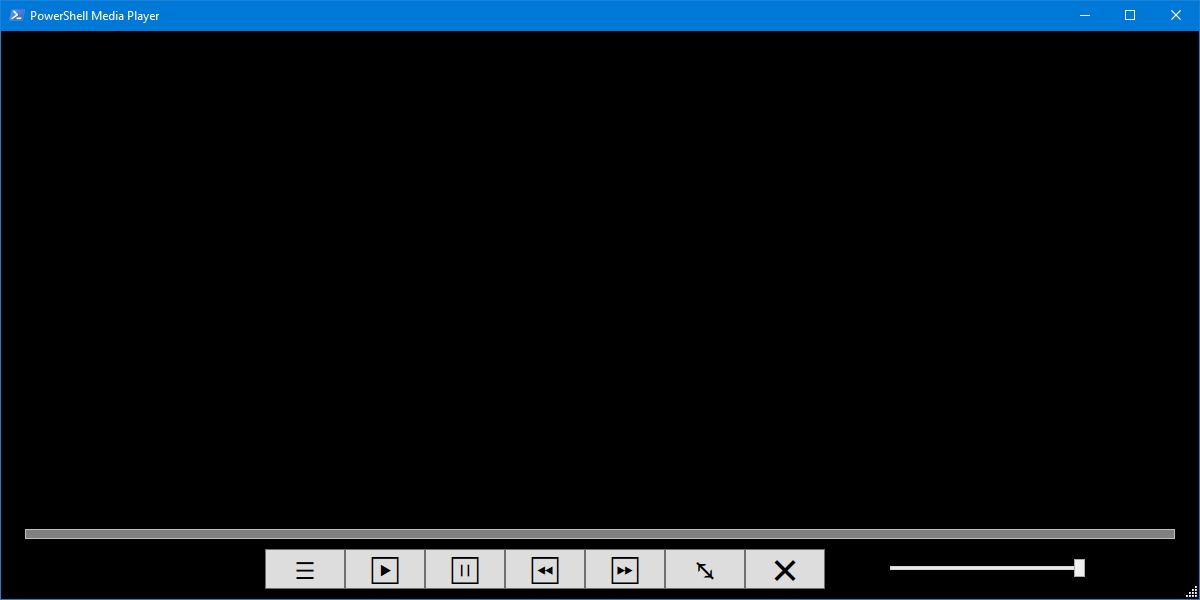
Media Player is a free Windows PowerShell application built with WPF and the Windows MediaElement control. It plays local video and audio files in a resizable interface with playback controls, interactive seeking, playback time, volume control, fullscreen support, and controls that automatically hide during playback.
Features
The load button opens a standard Windows file picker. The current filter highlights MP4, MP3, WMV, AVI, and MKV files, while an All Files option is also available.
Dedicated Play and Pause buttons control the WPF MediaElement and start or stop the progress timer used for the playback position display.
Rewind moves playback backward by 10 seconds. Fast-forward moves playback ahead by 10 seconds.
A transparent slider is layered over the visible progress bar. Clicking or dragging on that area changes the MediaElement playback position.
The player updates approximately every 500 milliseconds and shows elapsed time and total media duration in hh:mm:ss format.
Volume is adjustable from 0 to 1 using the horizontal volume slider. The player starts with the slider at full volume.
File Selection
The current Open File dialog highlights these media extensions:
Fullscreen
The fullscreen button removes the normal window border, disables resizing, makes the window topmost, and expands the player to the full bounds of the monitor where the window is currently located.
Double-clicking the player toggles fullscreen unless the click originated on a button or slider.
Pressing Esc while fullscreen restores the normal bordered player window.
Before the window changes fullscreen state, the current media position is stored and reapplied afterward so playback stays at the same point.
Interface
After media is loaded, a two-second timer hides the controls panel, progress controls, playback timer, and mouse cursor while video or audio is present. Moving the mouse shows the controls again and restarts the two-second timer.
How It Works
Codec Help
The ZIP includes a shortcut named K-Lite Codec Pack that opens the official Codec Guide page for the K-Lite Codec Pack Standard download. The included Read Me recommends trying K-Lite when a video opens but displays a black picture because a required codec may be missing.
Transparency
The player opens the local file you explicitly select in the Windows file picker and assigns its path to the WPF MediaElement source.
The PowerShell script contains no web-request or upload logic. Media selected for playback stays local to the Windows playback components.
The current script does not create a Windows service, scheduled task, startup entry, or media database.
A small native interop helper calls the Windows console API to hide the underlying PowerShell console so only the graphical media player remains visible.
Screenshot
FAQ
Yes. The player uses the same MediaElement for local video and audio files.
Yes. Once a file is selected and assigned to the player, the script starts playback and the progress timer.
Each button changes the current position by 10 seconds.
Yes. A transparent slider sits over the visible progress bar and changes the media position when used.
Press Esc, click the fullscreen button again, or double-click outside a button/slider area.
The Read Me identifies missing codec support as one possible cause. The ZIP includes an optional shortcut to the K-Lite Codec Pack Standard download page for troubleshooting.